
Google Shopping Ads: How to Set Up & Optimize Campaigns for Maximum ROI
If you’re running an e-commerce business and not using Google Shopping Ads, you’re leaving money on the table. These visually rich, high-intent ads appear at the top of Google search results with product images, prices, reviews, and merchant names, giving shoppers everything they need to make a purchase decision quickly.
In this guide, we’ll explain how to set up Google Shopping Ads and optimize your campaigns to boost visibility, clicks, and conversions.
🛒 What Are Google Shopping Ads?
Google Shopping Ads (also called Product Listing Ads or PLAs) allow online retailers to promote individual products directly on Google Search and Shopping tabs. Unlike standard text ads, these feature:
-
Product images
-
Pricing
-
Title
-
Store name
-
Reviews (if available)
They’re powered by your Google Merchant Center product feed and managed through Google Ads.
🧰 What You Need to Get Started
Before launching a campaign, make sure you have the following:
-
Google Merchant Center Account
This is where you upload your product feed. It connects your store’s inventory with Google Ads. -
Google Ads Account
You’ll run and manage your Shopping campaigns here. -
Product Feed
A file (usually in XML or CSV) with product details like titles, descriptions, availability, prices, and images. -
E-commerce Platform Integration
Platforms like Shopify, WooCommerce, or BigCommerce have built-in tools to sync your product feed with Google.
🚀 How to Set Up Google Shopping Ads (Step-by-Step)
1. Create and Verify Your Google Merchant Center Account
-
Go to Google Merchant Center.
-
Sign in with your business email.
-
Verify and claim your website URL.
-
Set up tax and shipping information (required in some regions).
2. Upload Your Product Feed
-
Generate a product feed manually or use a plugin/integration from your e-commerce platform.
-
Ensure your feed follows Google’s specifications.
-
Submit the feed and check for errors in Merchant Center.
3. Link Google Merchant Center to Google Ads
-
In Merchant Center, go to Tools & Settings > Linked Accounts.
-
Link your Google Ads account.
4. Create a Shopping Campaign in Google Ads
-
Go to Google Ads → Click + New Campaign
-
Choose Sales or Leads as your goal (or skip goal guidance).
-
Select Shopping as your campaign type.
-
Choose the linked Merchant Center account.
-
Pick between Standard Shopping and Performance Max (more on this below).
-
Set your daily budget and bidding strategy (e.g., Maximize Clicks, ROAS).
5. Segment Products Into Ad Groups
-
Group products by category, brand, or profit margin.
-
This lets you control bids more precisely.
🛠️ Optimization Tips for Shopping Ads
🏷️ 1. Optimize Product Titles and Descriptions
Google uses your feed data to match products with user searches. Make sure your:
-
Titles include brand, product type, key features (e.g., “Nike Air Max 270 Men’s Running Shoes – Red”).
-
Descriptions are keyword-rich but natural.
-
Avoid keyword stuffing—write for real shoppers.
📸 2. Use High-Quality Images
Clear, well-lit, and relevant product images increase clicks. Avoid watermarks or logos that may get disapproved.
🎯 3. Leverage Custom Labels
Use custom labels in your feed to group products by:
-
Bestsellers
-
Seasonal items
-
Profit margin
-
Clearance or promotions
You can then create campaigns targeting each group differently.
💰 4. Bid Smartly
Start with manual CPC for more control, or test Enhanced CPC or Target ROAS once you have conversion data. Bid higher for high-margin or high-converting products.
📊 5. Use Negative Keywords
Although Shopping Ads don’t use traditional keywords, you can exclude irrelevant searches by adding negative keywords to prevent wasted spend.
🧪 6. A/B Test Campaign Types
-
Standard Shopping Campaigns give more control over targeting and bidding.
-
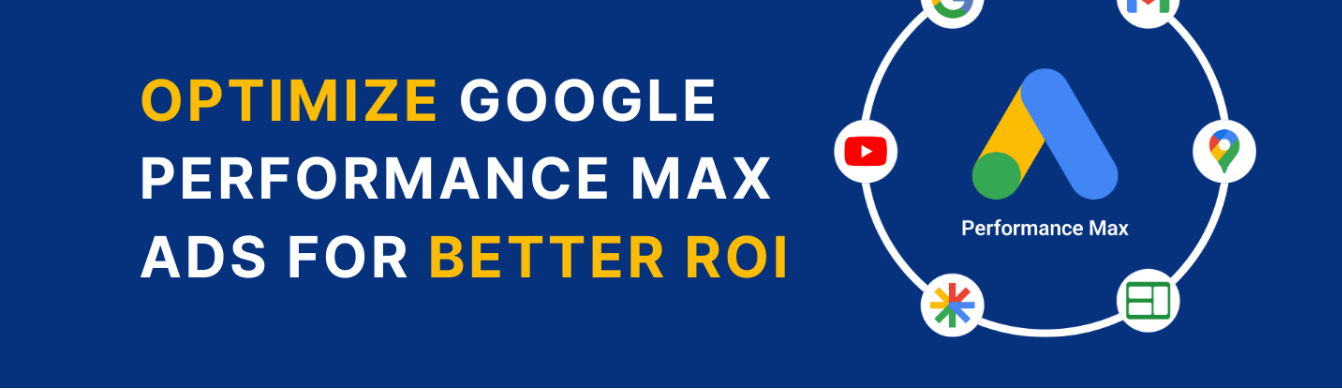
Performance Max Campaigns automate targeting across all Google networks (Search, Display, YouTube, etc.).
Test both to see which delivers better ROI.
🔍 7. Monitor Search Terms Report
In Google Ads, check which queries are triggering your ads. Use this data to refine your feed and update negative keywords.
🛍️ 8. Run Promotions via Merchant Center
Use Merchant Promotions to show sale prices or discount codes directly in your ads. These help you stand out and increase CTR.
📈 Track and Measure Performance
Use key metrics to optimize continuously:
-
Impressions: How often your products show up
-
Click-Through Rate (CTR): A high CTR indicates relevance
-
Cost-Per-Click (CPC): Keep an eye on your average CPC to manage budget
-
Conversion Rate: How many clicks lead to purchases
-
Return on Ad Spend (ROAS): The ultimate measure of profitability
Set up conversion tracking in Google Ads to capture these metrics accurately.
Final Thoughts
Google Shopping Ads are a must-have for any e-commerce store looking to drive targeted traffic and boost sales. With the right setup and ongoing optimization, you can get in front of high-intent shoppers at the exact moment they’re ready to buy.


